Installing the faircon Wi-Fi Adapter in a Fujitsu Air Conditioner
This guide explains how to install and configure a faircon Wi-Fi adapter for a compatible Fujitsu air conditioner and connect it to Home Assistant via MQTT.
Prerequisites
- An active and configured Home Assistant instance.
- A working MQTT broker along with its login credentials (username and password, if applicable).
- Note: The MQTT Discovery prefix cannot be changed at this time — the default Home Assistant prefix
homeassistantis used.
1. Install the faircon adapter
Before installing the adapter, disconnect the air conditioner from the mains power. This is strongly recommended for safety.
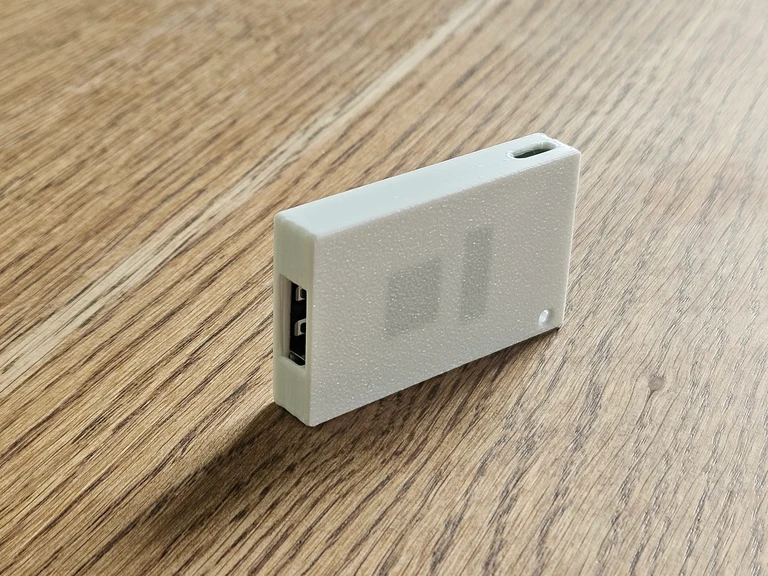
USB-type adapter
If you have the USB-type faircon adapter, simply insert it into the corresponding Wi-Fi adapter slot on the indoor unit.
JST-type adapter
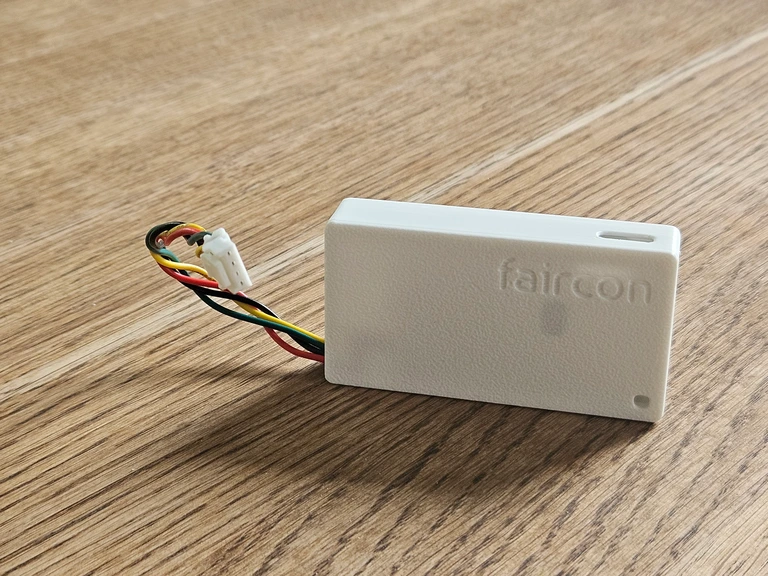
If you have the JST-type faircon adapter, connect it to the dedicated connector on the indoor unit.
The connector is usually labelled CN65, but depending on the air conditioner model it may be CN75, CN6, or another connector.
If you are unsure which connector to use, check the documentation for your specific air conditioner model before buying the adapter.
2. Power on the air conditioner
Reconnect the air conditioner to the mains.
After the faircon controller starts, it will create its own Wi-Fi access point.
The access point credentials will be:
- SSID:
faircon-<uniqueId> - Default Password:
faircon9
3. Configure the Wi-Fi & MQTT connection
- Connect your computer or mobile phone to the
faircon-<uniqueId>Wi-Fi network. - Open a web browser and navigate to
http://192.168.1.1. - Enter your local Wi-Fi network credentials.
- Enter your MQTT broker credentials (host, port, username, password).
- Choose a name for your air conditioner.
- Click Submit.
Important: The device password configured on this page will replace the default password (faircon9) and is also required for manual OTA firmware updates, so keep it somewhere safe. To reset the device to factory settings and restart the configuration process, press the reset button located inside the pinhole on the casing.
4. Connect to Home Assistant
After submitting the configuration, the faircon adapter will reboot and connect to your Wi-Fi network.
If the Wi-Fi and MQTT configurations are correct, the air conditioner should automatically appear in Home Assistant through the MQTT integration via discovery.
No manual entity configuration is required.
Have questions or running into issues? Check out our Frequently Asked Questions (FAQ) page for more assistance.